Body
In this article
How To Get Ready for Windows 11
Install Windows 11 prep

Once the Windows 11 upgrade is tested and validated for your specific PC, Windows Update indicates that it's ready for installation.

This is an in-place upgrade to Windows 11.
An in-place upgrade refers to the process of installing a new version of an operating system or application without removing the older version first. This method allows for the upgrade while keeping personal files, applications, and settings intact.
But before starting this upgrade, there are a few things to confirm you are ready to click 'Install Now' button, just in case.
Ensure needed data is backed up before running the update via
OneDrive
The three (3) (profile-based) folders OneDrive backs up at TCC by default are:
-Desktop
-My documents
-Pictures
The status of the OneDrive sync can be seen from the Window System Tray, or the desktop notification area, see below:

The Microsoft OneDrive icons in desktop notification areas, menu bars, Windows File Explorer and macOS Finder tell you the sync state of the file or folder.
If you don't see any desktop notification or menu bar icons, OneDrive may be hidden, not installed or not running. For assistance please contact OneIT support.
The TCC OneIT Team can be reached at 817-515-8324.
What do the OneDrive icons mean? - Microsoft Support
Please note that by default browser bookmarks are not saved as part of the OneDrive sync, to save those they will need to be exported to a file.
To save any bookmarks in a browser, see the following steps for most used browsers at TCC:
Google Chrome
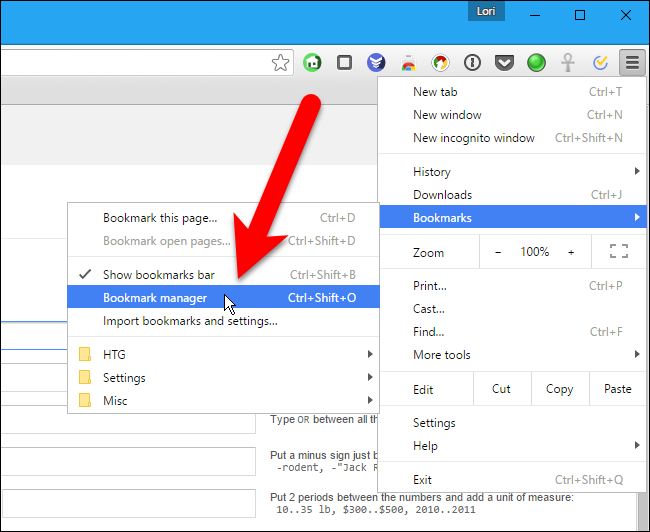
To import or export bookmarks in Chrome, click the Chrome menu icon at the top-right corner of your browser window, and go to Bookmarks > Bookmark manager. You can also quickly open the Bookmark manager by pressing Ctrl+Shift+O.
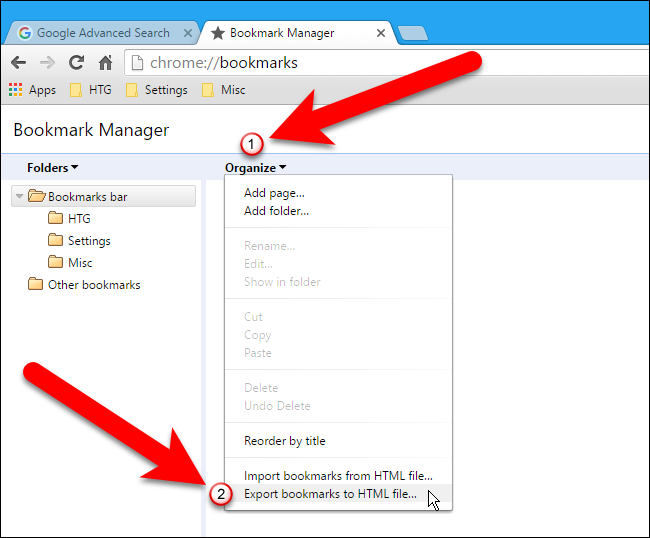
The Bookmark Manager opens on a new tab. Click “Organize” and select “Export bookmarks to HTML file”. (If you're importing from an HTML file you already have, choose "Import bookmarks from HTML File.)
On the Save As dialog box, Chrome will automatically give the HTML file a name containing the current date. Navigate to where you want to save this file and change the file name if you want. Since we’re going to be exporting bookmarks from different browsers, we added the name of the browser to the file name. Click “Save”.
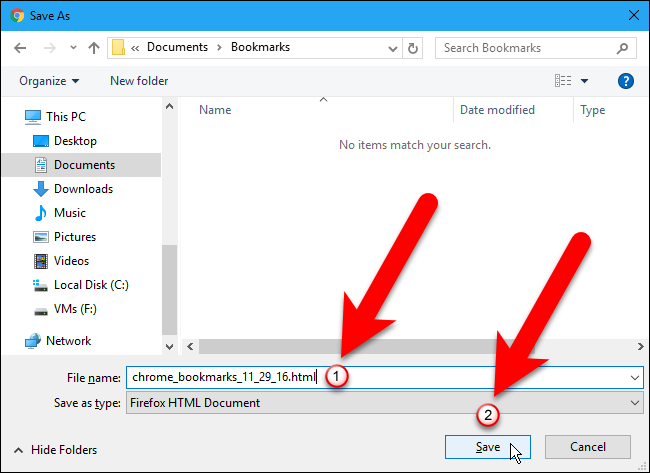
Please save these to a location in one of the three (3) folders OneDrive backs up at TCC and allow them to sync.
Please note any bookmarks imported from an HTML file are put into a folder called Imported for the Chrome browser.
Microsoft Edge
Back up your Microsoft Edge favorites, follow these steps:
- In your Microsoft Edge browser, open the Settings and more menu by selecting '…' (the three dots) in the upper-right corner of the window.
- Navigate to Favorites.

- Open the More options menu by selecting … above the list of favorited websites ... or the three dots '...' on the menu bar.

- Select Export favorites.

- Indicate a saving location, give the file a name you’ll remember, and choose Save.

Please save these to a location in one of the three folders One-drive backs up at TCC and allow them to sync.
Set aside time and a place to run the update
The Windows 11 update will take about (2) two hours to complete, once started please allow the process to complete. Please do not turn off the device until the process is completed.
It is recommended that you make sure device is plugged into a power source before starting this process.
Get assistance
If you encounter any problems with, OneDrive sync, exporting favorites, or any issues during the Windows 11 update, please do not hesitate to reach out to the OneIT support team at 817-515-8324. We are here to assist you and ensure your transition to Windows 11 is as seamless as possible.
Steps to Install Windows 11
To check if Windows 11 is ready for your device:
- Select Start and then select Settings > Update & Security > Windows Update .
Or
Select the following Windows Update shortcut:
Open Windows Update
Or
If the link above doesn't work, please press “Win key + R” to open the Run dialog. Type or copy-paste the command into the Run box, in this case:
ms-settings:windowsupdate
- In the Windows Update window that opens, select the Check for updates button.
Note: If there are updates available for the current version of Windows, the Windows 11 upgrade might not be made available until those updates are installed. Install any updates for the current version of Windows, restart the device, and then try checking for the Windows 11 upgrade again.
- If Windows 11 is ready to be installed on the device, a message is displayed in the Windows Update window showing that Windows 11 is ready.

- To proceed with the upgrade to Windows 11, select the Download and install button.
Note: Downloading and installing Windows 11 usually takes longer than a typical Windows 10 feature update. You can use your PC while Windows 11 downloads. Additionally, the install can be scheduled to happen at a specific time when you aren't planning on using your PC.
Contact
If you encounter any problems during the update, please do not hesitate to reach out to our support team. We are here to assist you and ensure your transition to Windows 11 is as seamless as possible. The TCC OneIT Team at 817-515-8324.