Body
Guide Topic
How to find your computer name on Windows 10 & 11. To find your computer name for tech assistance, chose one of the 3 methods below.
1. Use a Keyboard Shortcut
The quickest way to find out your computer name is to
- Press the "Windows key" + "Pause/break".
- Your computer name is listed next to "Computer name"
Note: Your keyboard may not have a "Pause/break" key. Many modern keyboards won't. If not, use another of the suggested techniques.
- Right click the "Start" button. This will open a list of choices.
- Click "System", which will open a Settings window.
-
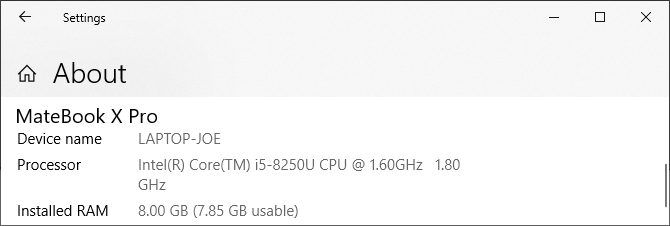
- Your computer name is listed next to "Device name".
3. Use Settings
- Press "Windows key" + "I" to open Settings.
- Click "System"
- Click "About"
- Your computer name is listed next to "Device name".